Guide
TempoClic runs in your browser, with no account. This guide covers each feature in a few lines.
Start
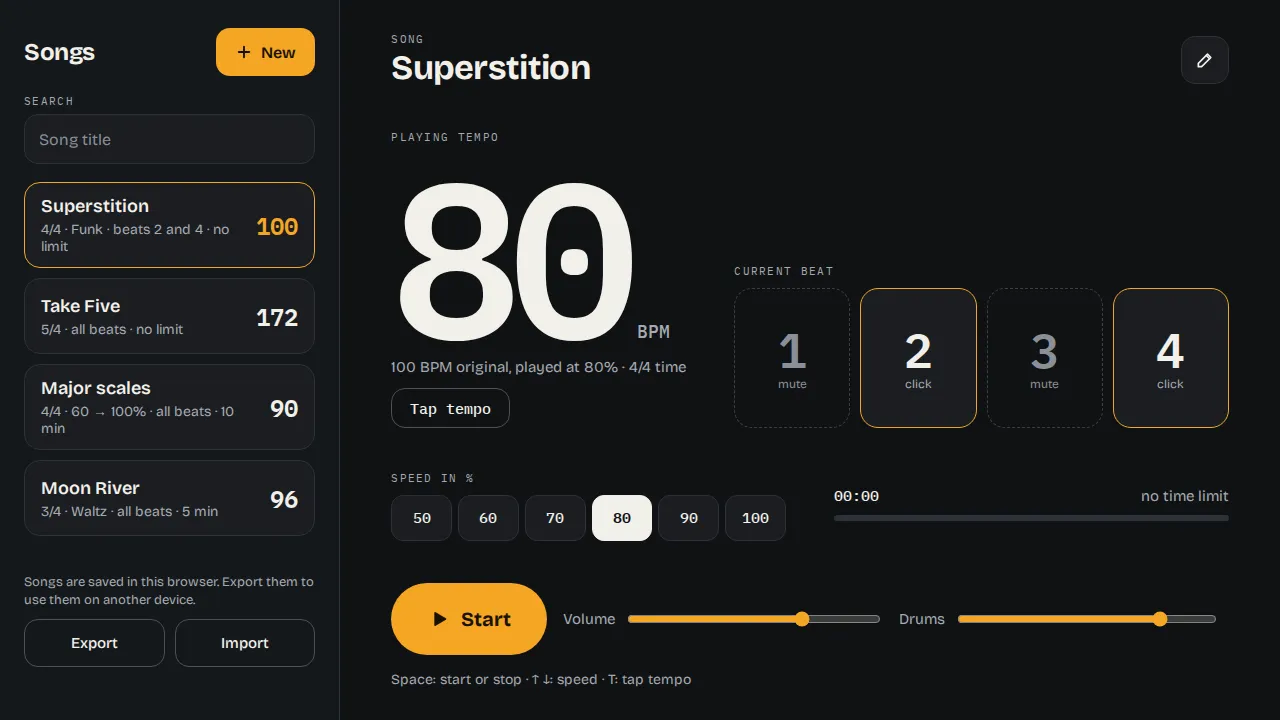
Press Start: the metronome plays the selected song. The big number is the tempo actually played, in beats per minute (BPM). The numbered boxes show the current beat of the bar. Press again to stop.
If you hear nothing, check the volume, below the button, and your device’s volume. On iPhone and iPad, the silent mode switch also mutes the browser.
Create a song
A song is a saved setup: a piece, an exercise or a tempo you use often. Press New, or the pencil to edit the song on screen, then set:
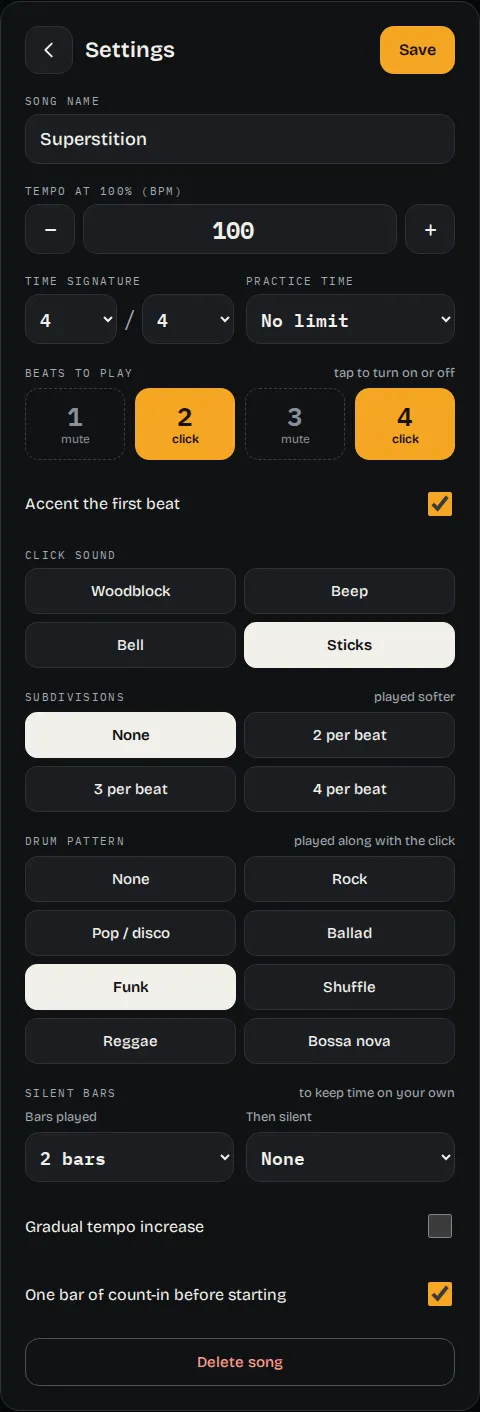
- Song name: to find it in the list.
- Tempo at 100%: from 30 to 300 BPM. The − and + buttons change it by one beat.
- Time signature: the number of beats per bar (1 to 12) and the note value of the beat (half, quarter or eighth note).
- Practice time: no limit, or 1 to 60 minutes.
- Beats to play: tap a beat to mute it or turn it back on.
- Accent the first beat: the first beat of each bar sounds higher, so you don’t lose your place in the bar.
- Click sound: woodblock, beep, bell or sticks. Each button plays the sound.
- Subdivisions: 2, 3 or 4 softer clicks per beat, to practice eighth notes, triplets or sixteenth notes.
- Drum pattern: a groove played along with the click (rock, pop, ballad, funk, shuffle, reggae, bossa nova in 4/4; waltz in 3/4; ballad in 6/8). Only the patterns that fit the chosen time signature are offered. Each button plays one bar. To hear the drums alone, turn off every beat. When a pattern is chosen, a Drums slider sets its volume, next to the main volume.
- Silent bars and Gradual tempo increase: explained below.
- Count-in: one bar played before the start, to get ready.
Press Save. To delete a song, open its settings and scroll down to Delete song.
Find the tempo of a song
Press Tap tempo at least twice, or the T key, in time with the song you are listening to. The song takes the tapped tempo, played at 100%. Four or five taps give a more accurate result. After a two-second pause, it starts over.
Play slower
The Speed in % buttons play the song at 50, 60, 70, 80, 90 or 100% of its tempo. The saved tempo does not change: you can practice a hard passage at 60%, then step back up to 100%. The choice is remembered for each song.
Speed up step by step
The gradual tempo increase does the steps for you. In the settings, tick Gradual tempo increase, then choose:
- From and Up to: the starting percentage and the target, from 30 to 150% of the song’s tempo. Aiming above 100% gives you some margin to play the song at its real tempo afterwards.
- Step: how much the tempo goes up each time, from 1 to 10%.
- Step length: how many bars each step lasts, from 1 to 16.
While playing, the screen shows the current step. The tempo always changes at the start of a bar. Once the target is reached, the metronome stays there. The speed buttons are disabled during an increase. Each time you start, it begins again from the first step.
Mute beats
Tap a numbered box to mute that beat: it stays on screen but no longer clicks. A few uses:
- Only 2 and 4: the backbeat, like a snare drum in rock, funk or jazz.
- Only 1: one reference per bar, to work on your own steadiness.
- Every other beat: to check that you keep the tempo when the metronome goes quiet.
Silent bars
To check that you keep time on your own, set Silent bars: for example 2 bars played, then 1 silent bar. During the silence, the click and the drums stop, but the beat tiles keep moving and the screen shows “silence”. If you land right on the beat when the click comes back, your tempo is steady.
Practice time
With a practice time, a progress bar shows the elapsed and remaining time. The metronome stops by itself at the end. With no limit, it plays until you stop it.
Find your songs
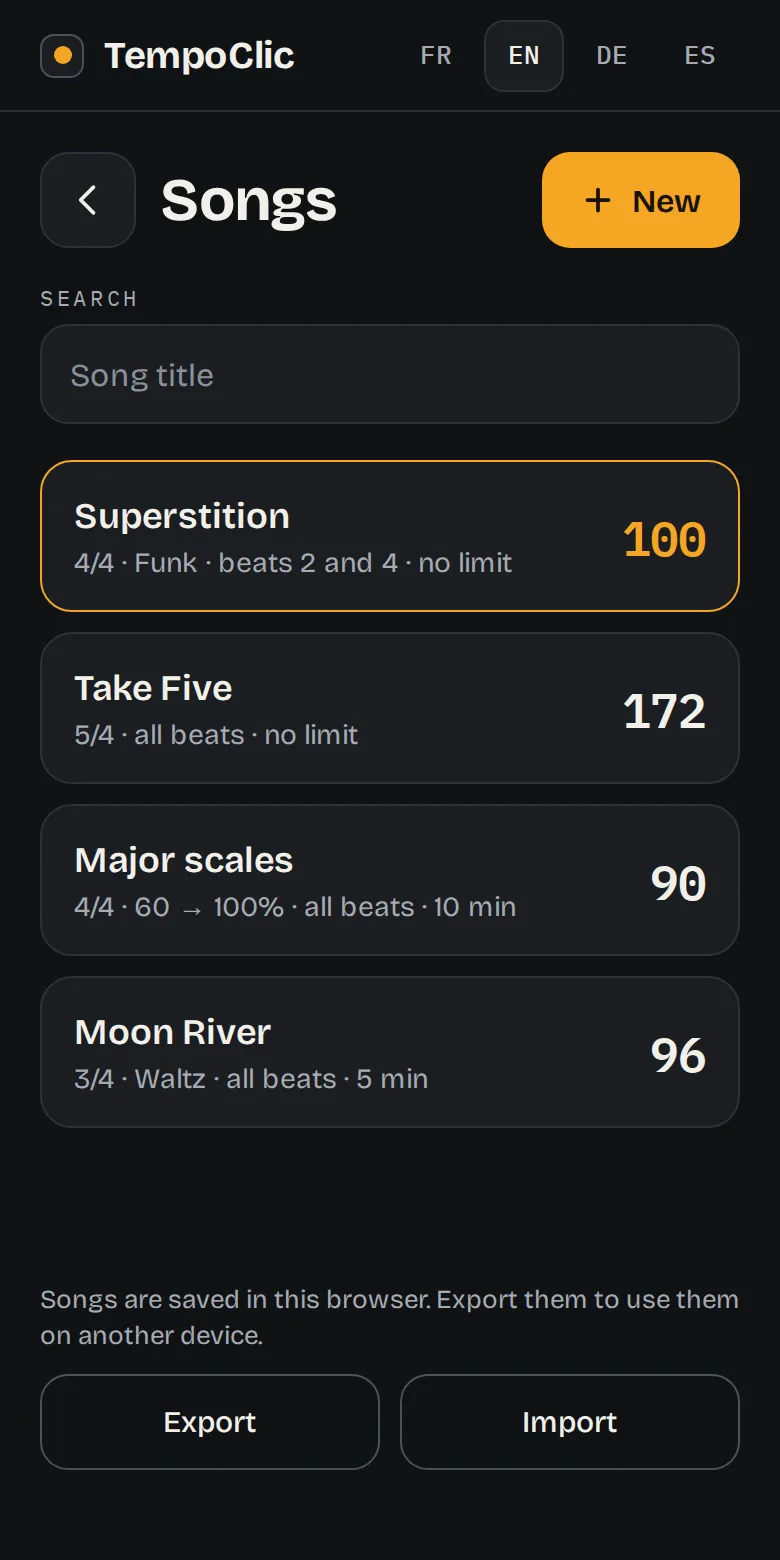
The song list is on the left on a computer. On a phone, open it with the button at the top left. The Search field filters the list by title. Tap a song to load it.
Back up and switch devices
Songs are saved in this browser, on this device. They are not sent anywhere. They can disappear if you clear your browsing data, and they are not kept in private browsing.
- Export creates a file with all your songs. Keep it as a backup.
- Import adds the songs from an exported file. A song that is already there is replaced by its version from the file; the others are kept.
To move from a computer to a phone, export on the first one, send yourself the file, then import it on the second one.
Install the app
TempoClic can be installed as an app, on a computer as well as on a phone. It then opens in its own window, with its icon, and works without a connection.
The Install the app button, under the song list, starts the installation or explains how to do it on your device. In detail, depending on the browser:
- Chrome or Edge (computer and Android): press Install the app, under the song list, or the install icon in the address bar.
- iPhone and iPad (Safari): tap the Share button, then Add to Home Screen.
- Mac (Safari): File menu, then Add to Dock.
On a computer and on Android, the app finds the songs saved in the browser. On iPhone and iPad, it has its own: export your songs from Safari, then import them into the app.
Even without installing it, the metronome opens offline in a browser where you have already used it.
Keyboard shortcuts
- Space: start or stop.
- Up arrow and down arrow: change the speed in %.
- T: tap the tempo.
Good to know
- While playing, the phone screen does not go to sleep, if the browser allows it.
- The metronome keeps time when you switch tabs.
- Settings changed while playing, such as the speed or muted beats, apply right away without stopping the metronome.